

Upload CRM contacts with a guided import
Sequences & CRMNewOct 19 – 25, 2026
Every number is checked before anything is uploaded, and you see exactly which rows to fix.
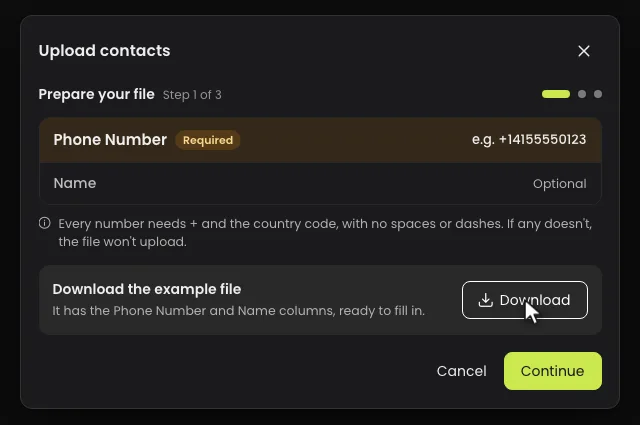
Bringing a contact list into the CRM no longer ends with an upload you can't explain. Upload contacts, in the CRM, opens a three-step import that checks every number before anything is saved.
How it works
- In the CRM, click Upload contacts.
- Prepare your file: download the example file. It has the Phone Number and Name columns, ready to fill in.
- Upload your file: drag your Excel (.xlsx) or CSV file into the window, or click to choose it.
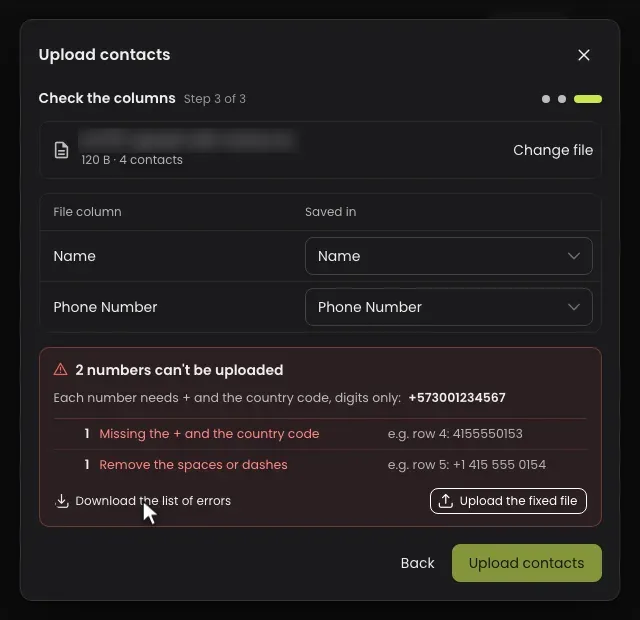
- Check the columns: for each column of your file, choose where it goes. An existing column, a new one, or Don't import.
- Click Upload contacts.
If a number fails
Every number needs a + and its country code, with no spaces or dashes. If any number fails, the file isn't uploaded. Instead you see how many numbers have each problem, such as Missing the + and the country code or Remove the spaces or dashes, with an example row for each. Click Download the list of errors to get every row to fix, correct your file and click Upload the fixed file.
Good to know
- If a number is already in the CRM, that contact is updated instead of a new one being created.
- Delete the example rows of the example file before you upload it.