

Call, message or enroll a contact from the CRM
Sequences & CRMNewOct 5 – 11, 2026
Call a contact, send it a WhatsApp template or add it to a voice sequence straight from the CRM, without opening another page.
Finding a contact in the CRM and then acting on it used to mean going somewhere else. Now every contact has an actions menu, on its row in the table and in its panel when you open it, with three actions: Call, Send template and Add to campaign.
Call a contact now
- Click Call on the contact.
- Pick the Voice agent that makes the call.
- Fill in the agent's variables, if it has any. The contact's name is already filled in.
- Click Call now. The call starts right away.
Send a WhatsApp template
Send template opens the WhatsApp template sender with the contact's number already in, so you only choose the template.
Add the contact to a voice sequence
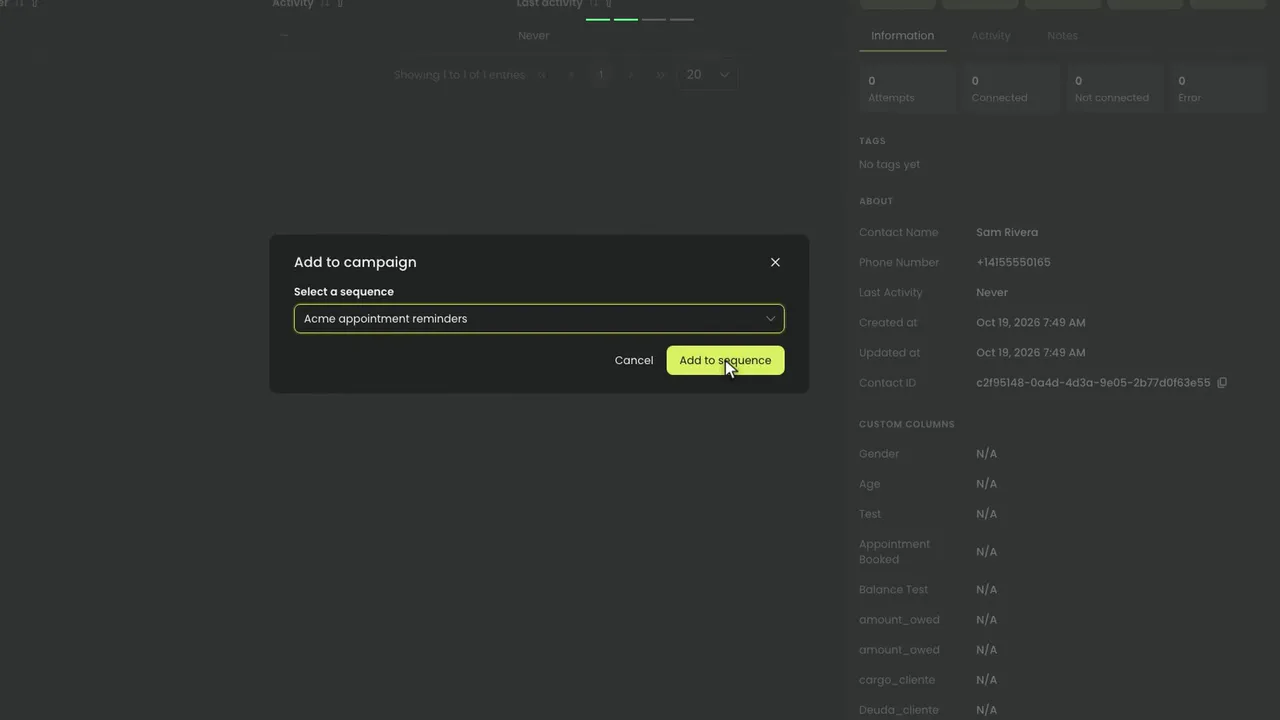
Add to campaign opens a short window: pick the voice sequence under Select a sequence and click Add to sequence. The contact joins that sequence.
Good to know
- The actions need permission to edit the CRM. With view-only access you can still find and open contacts.
- Sequences the contact is already active in aren't listed.
- Calling a contact or sending it a template needs a phone number on the contact.